


Your GPU can render 8K RAW footage at 120fps, your CPU has more cores than a beehive, and your NVMe drive laughs at load times… yet your monitor is still showing you colors that look like they were calibrated by someone who failed art class in 2009. Sound familiar? If you are serious about video editing on a desktop PC, the display sitting in front of you is arguably the most critical piece of the entire setup. Understanding the key factors to consider when choosing a monitor for video editing desktop work is not just useful knowledge; it is the difference between delivering a grade that wows a client and one that looks completely different on every screen your audience uses.
This guide breaks down everything you need to know, from color accuracy and panel technology to resolution and refresh rate, and pairs the theory with real hardware recommendations you can actually buy today.
What Makes a Monitor Suitable for Video Editing?
Video editing is a discipline that punishes bad monitors in ways gaming simply does not. A gamer can survive with a slightly warm white point. A colorist cannot. The monitor you choose needs to faithfully reproduce the color space your footage was shot in, sustain that accuracy over long sessions, and give you enough screen real estate to work without constantly resizing timelines.
Here are the core criteria that separate a competent editing display from a liability sitting on your desk.
Color Accuracy and Color Space Coverage
This is where most people get it wrong. A monitor can have a beautiful-looking panel and still be completely useless for professional work if it cannot cover the right color gamut. For video editing, you want at minimum 99% sRGB coverage, but ideally 95% or better DCI-P3 coverage for any work destined for streaming platforms, cinema, or HDR delivery.
Delta E (dE) is the measurement of color accuracy. A dE value below 2 is considered professional-grade; below 1 is exceptional. Always check whether a monitor ships with a factory calibration report, because marketing specs and real-world accuracy are not always the same thing.
Panel Type: IPS, OLED, or Mini-LED?
IPS panels remain the workhorse of professional editing monitors. They offer consistent color across wide viewing angles, predictable brightness uniformity, and a long track record in color-critical environments. Most professional-grade monitors in the mid and high-end segments still use IPS or its derivatives.
OLED panels have matured considerably and now offer genuinely impressive color volume and infinite contrast ratios. The concern with OLED for editing has traditionally been burn-in risk from static UI elements like timeline bars and tool panels. Newer OLED panels with pixel-shift technology have reduced this risk, but it is still a consideration for editors who keep the same layout open for eight hours a day.
Mini-LED IPS hybrids occupy an interesting middle ground: excellent peak brightness for HDR grading, strong local dimming, and none of the burn-in anxiety. They tend to be bulkier and more expensive, but for HDR-heavy workflows they are genuinely compelling.
Resolution and Screen Size
4K (3840×2160) is the practical standard for video editing monitors. It gives you enough pixel density to see fine detail in footage, and enough workspace to run a full NLE interface without everything feeling cramped. For a 27-inch display, 4K is ideal. At 32 inches, it remains excellent. Going larger than 32 inches without increasing resolution starts to look soft at normal desk distances.
Ultrawide monitors (21:9 or 32:9 aspect ratios) have a dedicated following among editors who want a wider timeline view without a dual-monitor setup. They work well, though some NLE applications still have minor quirks with ultrawide layouts.
Brightness, HDR Support, and Uniformity
If you are grading HDR content, your monitor needs to hit at least 1000 nits peak brightness to give you a meaningful HDR preview. Monitors certified under VESA DisplayHDR 1000 or higher are the baseline for genuine HDR grading work. Below that threshold, you are essentially guessing what your HDR output will look like on a consumer television.
Brightness uniformity is equally important and far less discussed in spec sheets. A monitor with a 400-nit center and 280-nit corners will show you a gradient across a flat gray sky that simply does not exist in the footage. Look for monitors with factory uniformity compensation, particularly in the mid-range and above.
Refresh Rate and Response Time for Editing
For video editing specifically, refresh rate matters less than it does for gaming. A 60Hz display is perfectly adequate for scrubbing timelines and reviewing playback. That said, 120Hz panels have become common enough at the mid-range price point that there is little reason to settle for 60Hz unless you are on a strict budget.
Response time is largely irrelevant for editing work. Do not pay a premium for 1ms GtG response unless you are also using this monitor for gaming, in which case it becomes a legitimate consideration.
Connectivity: Ports That Actually Matter
For a video editing desktop, you want at minimum one DisplayPort 1.4 or HDMI 2.1 input to drive 4K at full resolution without bandwidth compression. USB-C with full DisplayPort Alt Mode and power delivery is increasingly useful if you also work from a laptop. A built-in USB hub saves desk cable clutter, and a headphone jack on the monitor is a small but genuinely convenient feature during long edit sessions.
Recommended Monitors for Video Editing
The following monitors represent the best available options across four price tiers. Each has been selected based on color accuracy, panel quality, and real-world usability for video editing workflows.
Best Budget Monitor for Video Editing
LG 27UP850N-W 27-inch 4K IPS USB-C Monitor
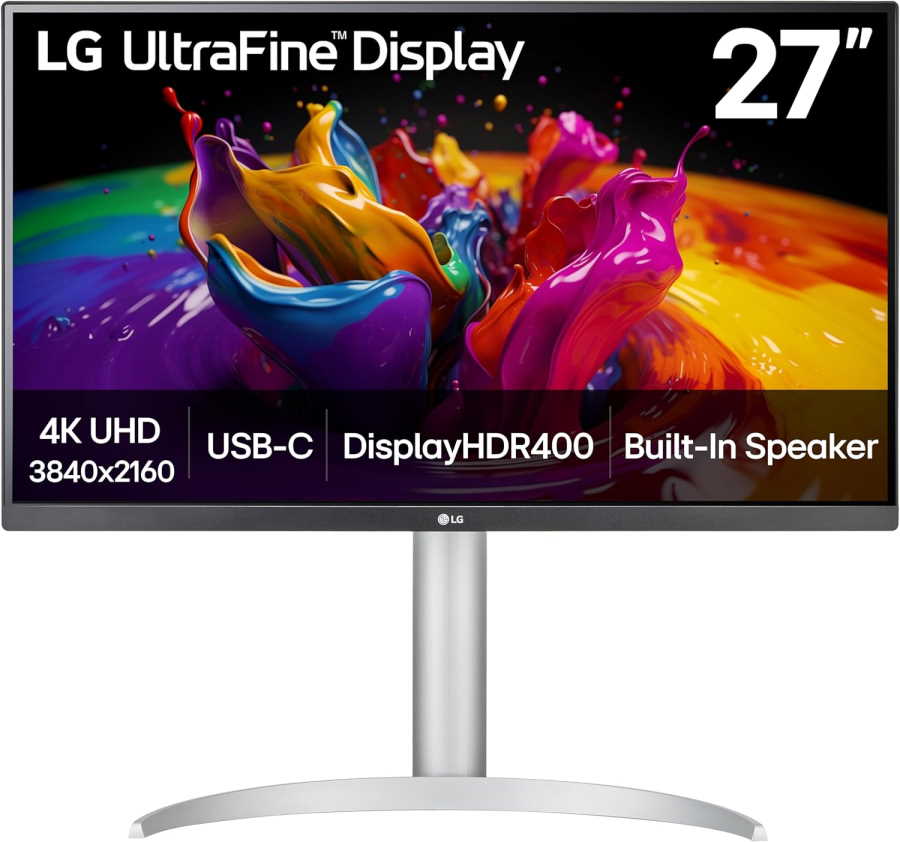
LG 27UP850K-W 27-inch Ultrafine 4K UHD
Color accuracy is solid for the price, covering sRGB reliably with decent DCI-P3 coverage. Factory calibration is adequate but not exceptional. The panel handles gradient transitions cleanly, making it serviceable for general video editing work without demanding professional color grading.
The LG 27UP850N-W covers 95% DCI-P3 and 99% sRGB with factory calibration, ships with a Delta E below 2, and includes USB-C with 96W power delivery. At its price point, it remains one of the most capable budget entry points for editors who need reliable color without spending professional-grade money.
It tops out at 400 nits, which limits its usefulness for HDR grading, but for SDR editing and color work destined for web delivery it is more than adequate.
Best Mid-Range Monitor for Video Editing
ASUS ProArt PA279CRV 27-inch 4K IPS USB-C Monitor
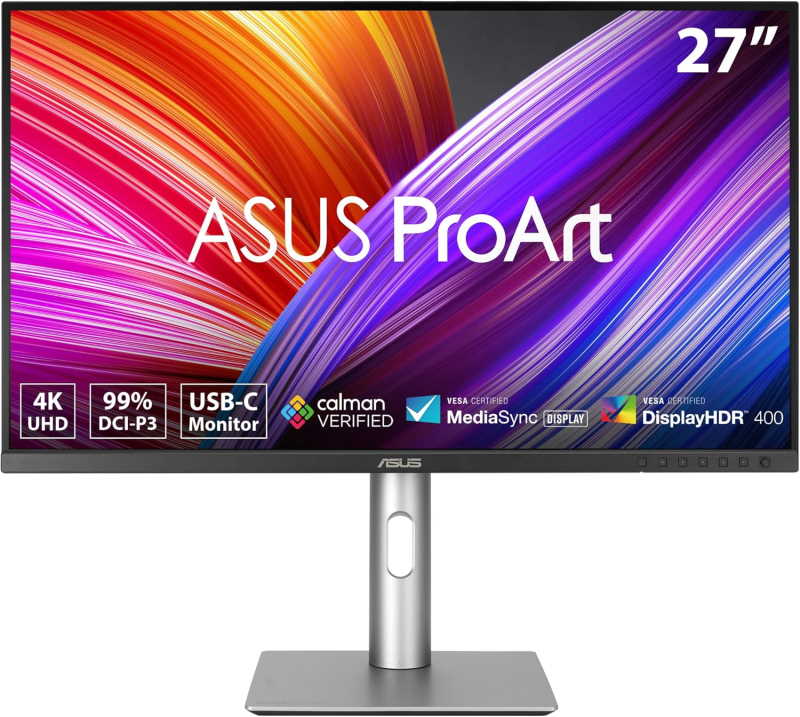
ASUS ProArt Display 27-inch PA279CRV 4K HDR Professional Monitor
One of the stronger performers at this price tier. Factory calibration is tight, Delta E figures are consistently low out of the box, and the Calman Verified status holds up in practice. Color uniformity across the panel is above average, which matters in extended grading sessions.
The ASUS ProArt PA279CRV is one of the most well-rounded mid-range editing monitors available. It covers 99% DCI-P3 and 99% Adobe RGB, ships with a factory calibration report, and includes a hardware calibration port for users who own a colorimeter. Peak brightness sits at 600 nits, which is sufficient for HDR preview work at this tier.
The USB-C input handles 96W charging, and the built-in USB hub includes multiple USB-A ports. Build quality is excellent, and the stand offers full ergonomic adjustment including pivot for portrait mode.
Best High-End Monitor for Video Editing
BenQ SW321C 32-inch 4K Professional Monitor
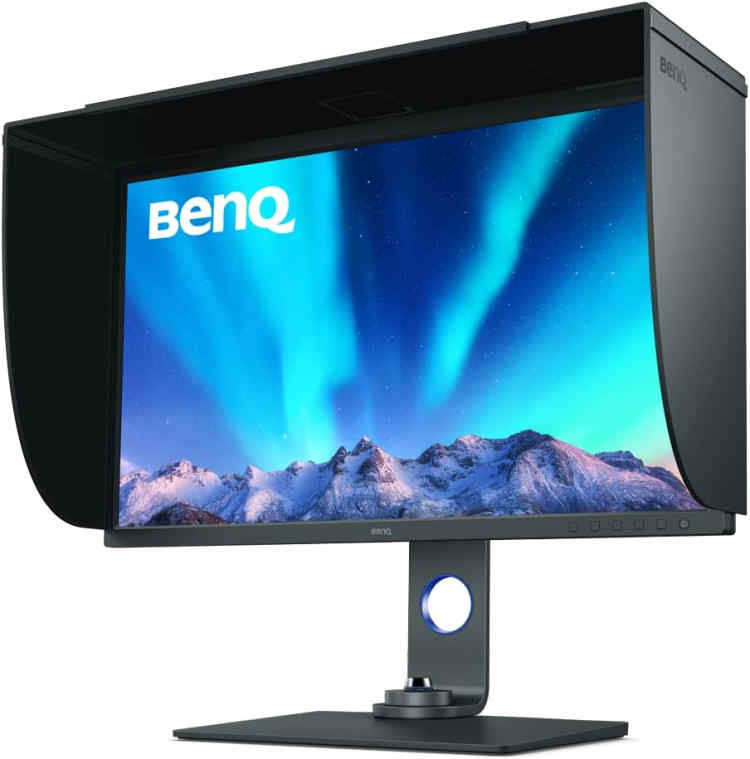
BenQ SW321C 32-inch 4K UHD Professional Display
Built specifically for color-critical work. The hardware calibration engine, combined with the shading hood and dedicated color modes, produces results that hold up alongside monitors costing significantly more. Color volume and HDR handling are genuine strengths. The 32-inch surface gives editors meaningful screen real estate without sacrificing accuracy.
At the high end, the choice narrows to either OLED or premium Mini-LED IPS depending on your workflow. The LG 32EP950 OLED delivers infinite contrast, near-perfect color volume across DCI-P3 and BT.2020, and a panel that makes HDR footage look genuinely stunning. For colorists working on streaming or cinema content, it is a serious professional tool.
The BenQ SW321C offers a more traditional IPS approach with hardware calibration, 99% Adobe RGB, and exceptional uniformity compensation. It is the safer long-term investment for editors concerned about burn-in, and its Hotkey Puck controller is a genuinely useful workflow accessory.
Best Value-for-Money Monitor for Video Editing
ViewSonic VP2768a 27-inch QHD IPS Monitor
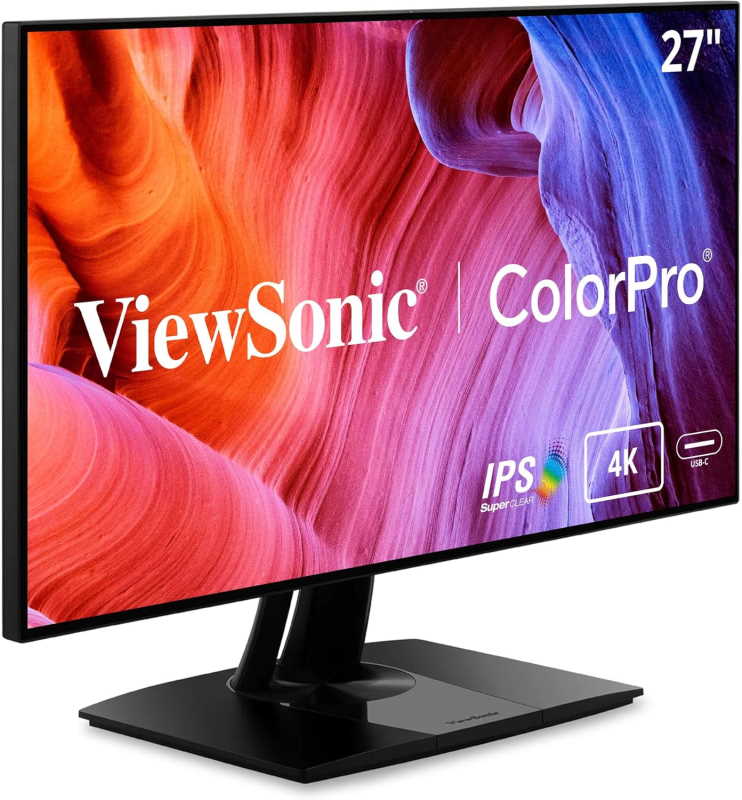
ViewSonic VP2768A-4K 27 Inch 4K ColorPro Monitor
A capable mid-range option. It covers the sRGB and Rec. 709 color spaces accurately enough for broadcast and web delivery work, and factory calibration is respectable. Not a substitute for a hardware-calibrated display in demanding grading environments, but reliable for editors who prioritize color consistency over pure precision.
If 4K is outside the current budget but color accuracy cannot be compromised, QHD IPS monitors like the ViewSonic VP2768a offer 99% sRGB, 90% DCI-P3, and hardware calibration support at a price that leaves room in the build budget for better storage or more RAM. The Gigabyte M27Q X adds a 240Hz refresh rate for users who also game, making it a genuinely versatile dual-purpose display.
Neither matches the color volume of a proper 4K professional panel, but both outperform the generic gaming monitors that many editors are still using because they never prioritized the display.
AMD PC Build for Video Editing
These components are hand-picked and vetted for compatibility, though we do not guarantee availability. They are suitable for an AMD-based PC build optimized for video editing workloads, with strong multi-core rendering performance and GPU-accelerated timeline playback. If you do not like the recommendations, you can easily swap out unwanted parts and add new ones using the AI PC Builder tool. Simply click on the BUILD/CUSTOMIZE THIS button to get started.
- CPU: Ryzen 9 7950X3D$699.99
Price on Newegg |
Price on eBay
Amazon Price
- Motherboard: ASUS ProArt X870E Creator WiFi (Used – Like New)$419.97
- GPU: ASUS ProArt GeForce RTX 4070 Ti Super OC Edition $1,359.00
- RAM: TEAMGROUP T-Force Delta RGB DDR5 64GB$989.99
- Storage 1: Lexar 2TB NM790 SSD PCIe Gen4 NVMe M.2$299.99
- Storage 2: Seagate FireCuda 530 4TB (Unavailable)$549.99
- PSU: Lian Li Edge 850W Fully Modular ATX Power Supply Cybernetics Gold Efficiency$110.99
- Case: Lian Li Lancool III RGB$189.99
- CPU Cooler: Thermalright Phantom Spirit 120 EVO CPU Cooler$46.90
- Display: ASUS ProArt Display 27-inch PA279CRV 4K HDR Professional Monitor $399.00
Price on Manufacturer
TOTAL COST: $5,065.81
📊 Price History
[Prices updated: 5:40am, 08/25/2026]
The Ryzen 9 7950X3D is a genuinely powerful editing CPU, with 16 cores and AMD’s 3D V-Cache technology providing excellent performance across both rendering and timeline scrubbing. The ASUS ProArt RTX 4070 Ti SUPER handles GPU-accelerated encoding in DaVinci Resolve and Premiere Pro without breaking a sweat. The dual-NVMe setup separates the OS drive from the active project drive, which meaningfully reduces I/O bottlenecks during heavy editing sessions.
Intel PC Build for Video Editing
These components are hand-picked and vetted for compatibility, though we do not guarantee availability. They are suitable for an Intel-based PC build designed for professional video editing, with strong single-core performance and robust hardware encoding support. If you do not like the recommendations, you can easily swap out unwanted parts and add new ones using the AI PC Builder tool. Simply click on the BUILD/CUSTOMIZE THIS button to get started.
- CPU: Core i9-14900K$396.00
- Motherboard: ASUS TUF Gaming Z790 BTF WiFi$625.98
- GPU: ASUS ProArt GeForce RTX 4070 Ti Super OC Edition $1,359.00
- RAM: TEAMGROUP T-Force Delta RGB DDR5 64GB$989.99
- Storage 1: Crucial T710 2TB Gen5 NVMe SSD$437.00
- Storage 2: Seagate FireCuda 530 4TB (Unavailable)$549.99
- PSU: Lian Li Edge 850W Fully Modular ATX Power Supply Cybernetics Gold Efficiency$110.99
- Case: Lian Li Lancool III RGB$189.99
- CPU Cooler: Thermalright Phantom Spirit 120 EVO CPU Cooler$46.90
- Display: ASUS ProArt Display 27-inch PA279CRV 4K HDR Professional Monitor $399.00
TOTAL COST: $5,104.84
📊 Price History
[Prices updated: 5:40am, 08/25/2026]
Intel’s i9-14900K brings strong single-core performance that benefits applications like Adobe Premiere Pro, which historically has favored Intel’s architecture for certain encoding tasks. The ASUS TUF Gaming Z790 provides excellent power delivery headroom for sustained all-core loads during long renders. The Crucial T710 2TB on PCIe Gen5 is one of the fastest consumer NVMe drives available, and it pairs well with the Seagate FireCuda 530 4TB as a dedicated project drive.
Putting it Together
Assembling a video editing desktop is not dramatically different from building any other PC, but a few workflow-specific considerations are worth keeping in mind before you start installing components.
Cable management matters more for editing setups than for most gaming rigs because you are likely running multiple storage drives, additional USB peripherals, and possibly a secondary reference monitor. Plan your routing before you start seating components, not after.
Thermal management is also worth taking seriously. Video editing workloads are sustained and CPU-intensive in a way that gaming is not. A gaming PC might spike to 90% CPU utilization for a few seconds during a level load; a video editing PC will hold 95% across all cores for 45 minutes during an export. Ensure your case has adequate airflow and that your cooler is rated for the TDP of the CPU you are running.
If you are new to building PCs and want a guided walkthrough of the entire assembly process, the step-by-step DIY PC build guide covers everything from installing the CPU to first boot, with clear instructions suitable for first-time builders.
Once the hardware is assembled, install your NLE of choice, set your scratch disk and cache to the secondary NVMe drive rather than the OS drive, and run a calibration pass on your monitor using a hardware colorimeter if you have one. Even a factory-calibrated panel benefits from a user-side calibration profile matched to your specific room lighting conditions.
Optimizing Your Build for Video Editing
Hardware alone does not define editing performance. Several software-side settings have a significant impact on how smoothly your system handles demanding timelines.
Enable GPU Acceleration in Your NLE
Both DaVinci Resolve and Adobe Premiere Pro support GPU-accelerated rendering and effects processing. Ensure that GPU acceleration is enabled in your application preferences, and that your driver is current. An outdated GPU driver can cause crashes and performance regressions in Resolve in particular.
Use Proxy Workflows for High-Resolution Footage
If you are editing 6K or 8K RAW footage, even a high-end system will benefit from a proxy workflow. Generate optimized media or proxy files at half or quarter resolution for the edit, then relink to full-resolution files for the final export. This keeps your timeline responsive during the creative phase without sacrificing output quality.
RAM Allocation and Virtual Memory
DaVinci Resolve in particular benefits from generous RAM allocation. In the Memory and GPU preferences, set the system RAM reserved for Resolve to at least 75% of your total installed RAM. With 64GB installed, that gives Resolve roughly 48GB to work with, which is sufficient for most professional workflows.
Monitor Color Management Settings
Set your operating system’s color management to use the ICC profile generated by your monitor calibration. In DaVinci Resolve, enable color management and set your color science to DaVinci YRGB Color Managed or ACES depending on your delivery pipeline. Mismatched color management between the OS and the application is one of the most common sources of unexpected color shifts between the edit suite and the delivery platform.
More Like This >
Best CPU/GPU For Video Editing
Best Motherboard for 4K Video Editing
Best PC Builds for DaVinci Resolve
Best PC Parts for Upgradeable Desktop For Coding, 4K Video Editing, and Gaming
PC Build for Photo/Video Editing
Conclusion
The key factors to consider when choosing a monitor for video editing desktop work come down to color accuracy, panel technology, resolution, and how well the display integrates with your broader hardware setup. A monitor is not a peripheral you upgrade every two years like a GPU; a well-chosen professional display will serve a workflow for five to seven years if it is properly calibrated and maintained.
The builds outlined above pair strong multi-core CPUs with capable GPUs and fast NVMe storage, giving you a platform that will not become the bottleneck in your pipeline. The monitor recommendations span a range of budgets without compromising on the color accuracy that video editing actually demands.
Get the display right first. Everything else is just rendering time.
All Articles