



If you ever tried to achieve drawing art with a mouse on your PC, you’ll agree it is hellish. I would say totally frustrating – obviously, you won’t get anything decent except for scribbles. This leads us to a logical conclusion; no matter how adept you are with a mouse you just can’t compare it to a graphics tablet. With a drawing tablet, you have more options, more freedom, and more precision. So what are the best graphics drawing Tablets for artists and designers? Here are six worth buying in 2026, chosen for build quality, pen feel, and how well each one holds up under a full day of work.
Six tablets, scored on three criteria that matter regardless of whether you’re drawing on glass or looking at a separate monitor: Precision & Pen Feel (pressure levels, tilt, latency, calibration accuracy), Build & Ergonomics (materials, portability, comfort over long sessions), and Value for Money (what you get relative to the price). Each category is scored out of 5, in 0.1 increments, and averaged for an overall rating.
XPPen Artist Pro 27 Gen 2
RELATED ARTICLE
Build the Ultimate Graphic Design PC
If you’re planning on building the ultimate PC for graphic design, then this is for you…
| Products | Best Performance 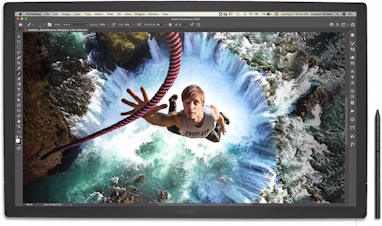 | Best Overall 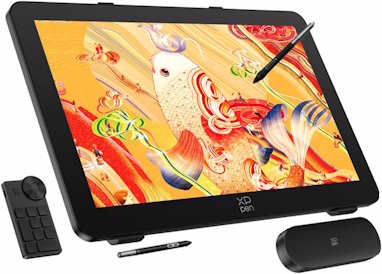 | Best Value 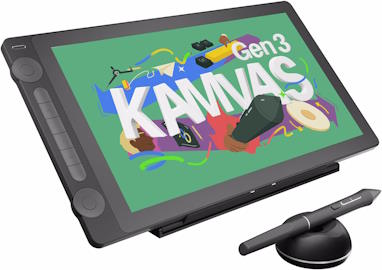 | 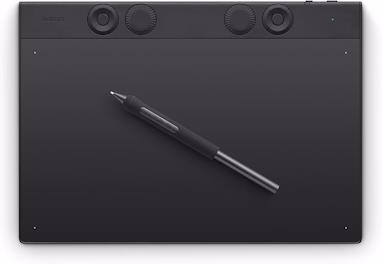 | Best Budget 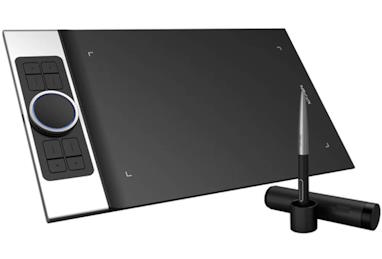 | 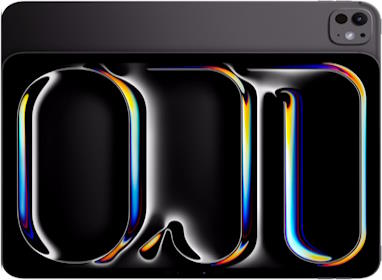 |
Wacom Cintiq Pro 27 | XPPen Artist Pro 27 Gen 2 | Huion Kamvas 16 (Gen 3) | Wacom Intuos Pro Medium | XP-Pen Deco Pro MW | Apple iPad Pro (M5) with Apple Pencil Pro | |
| PRICE | $3,499.95 | $1,899.99 | $459.00 | $379.95 | $1,149.00 | |
| OVERALL RATING | 4.5 | 4.5 | 4.4 | 4.3 | 4.3 | 4.4 |
| PRECISION & PEN FEEL | ||||||
| BUILD & ERGONOMICS | ||||||
| VALUE FOR MONEY | ||||||
| WHERE TO BUY | View on Amazon ↗ | View on Amazon ↗ | View on Amazon ↗ | View on Amazon ↗ | View on Amazon ↗Official Store Newegg B&H Photo | View on Amazon ↗ |
Wacom Cintiq Pro 27
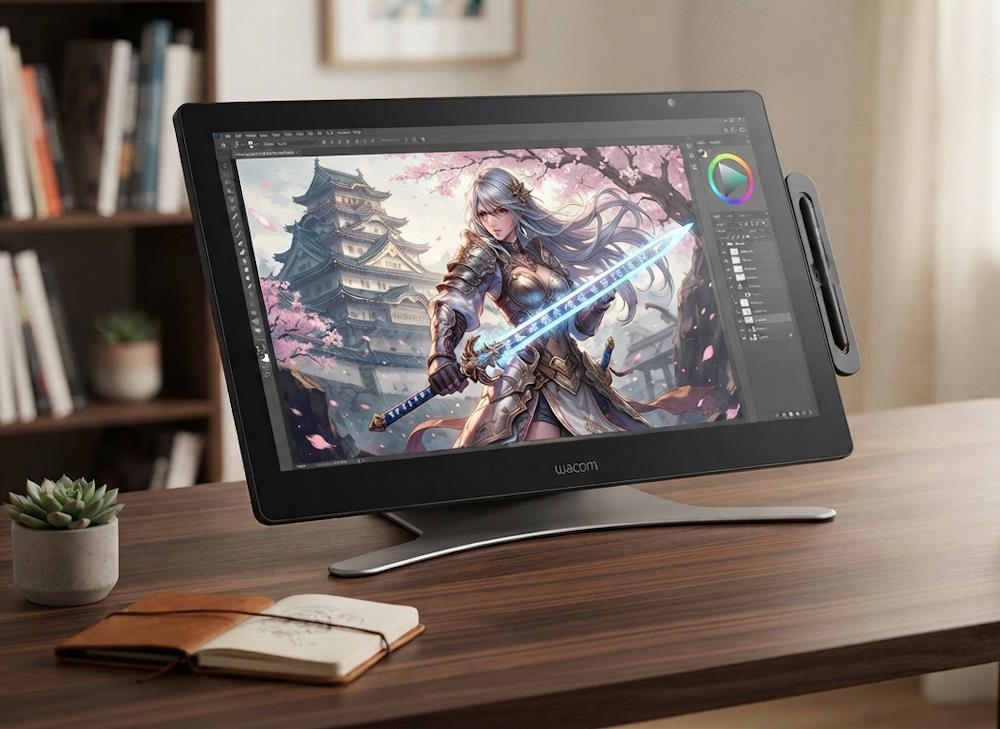
The Cintiq Pro 27 is still the standard other pen displays get measured against. Its 26.9-inch 4K panel runs at 120Hz and covers 99% Adobe RGB and 98% DCI-P3, with Pantone validation and HDR gamma support built in, so color work translates reliably to print and video. The 8192-level Wacom Pro Pen 3 can be reconfigured for weight, balance, and button count, which matters more than it sounds once you’ve spent six hours holding a stylus. Connectivity runs through DisplayPort, HDMI, or USB-C, and the unit does have a small fan for cooling.
None of this comes cheap. Street price sits north of five thousand dollars, and the stand is sold separately for several hundred more. Weighing in at roughly 7.2 kilograms, it is not something you toss in a bag either. This is a studio tool for illustrators, concept artists, and video professionals who already know they need the ceiling this hardware offers, not a first tablet.
Pros:
- Best-in-class color accuracy and calibration out of the box
- Pro Pen 3 is fully customizable for weight, balance, and buttons
- 120Hz refresh eliminates any lag between hand and cursor
Cons:
- Price exceeds $5,000 before the stand, sold separately
- At 7.2 kg, it’s not something you relocate often
- Requires a fan for cooling, adding faint background noise
RELATED ARTICLE

Best Wi-Fi Routers for Gaming and Streaming
We round up the best of the best routers for gaming and streaming. Full Review and buying guide
XPPen Artist Pro 27 Gen 2
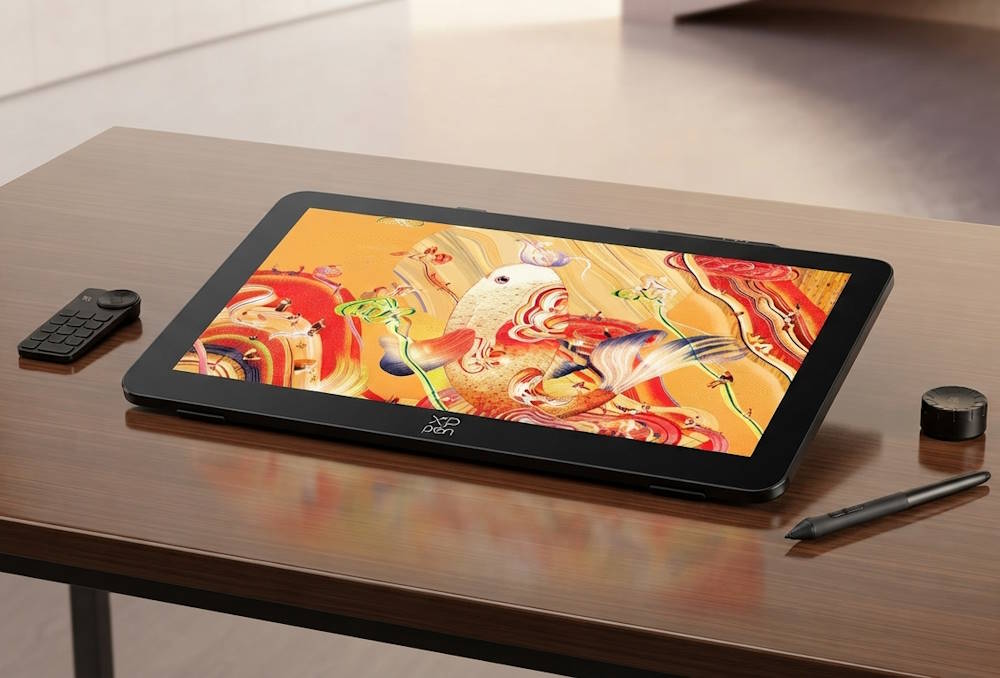
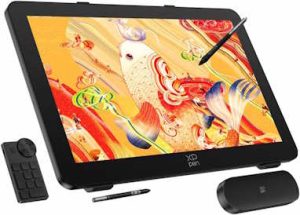
XPPen’s newest flagship undercuts the Cintiq Pro 27 by roughly three thousand dollars while matching most of what actually affects daily drawing. The 26.9-inch panel hits 3840×2160 resolution at 120Hz, with 99% sRGB, 99% Adobe RGB, and 97% DCI-P3 coverage, factory-calibrated to a Delta E under one. XPPen ships two styli in the box, the X3 Pro Slim and X3 Pro Smart Chip, both rated at 16,384 pressure levels, and includes a wireless keypad with a 10×4 grid of shortcut keys plus a control dial.
The stand adjusts from 16 to 72 degrees with one hand, which beats fumbling with a mechanical latch mid-sketch. At $1,709 to $1,899 depending on the retailer, it lands in a strange gap between mid-range and professional pricing, but the display quality alone justifies it for anyone who wants Cintiq-tier color without the Cintiq-tier invoice. The tradeoff is software polish: XPPen’s driver suite still trails Wacom’s in stability, though it has closed most of the gap in the last two years.
Pros:
- Near-flagship color accuracy at roughly a third of the Cintiq’s price
- Ships with two styli and a wireless shortcut keypad
- Stand adjusts one-handed from 16° to 72°
Cons:
- Driver suite still trails Wacom’s in long-term stability
- Still a serious investment at $1,700 to $1,900
- Large footprint; not a desk you can easily share
RELATED ARTICLE

Best Graphic Cards under 100 USD
We review a selection of the best GPUs you can grab for under a hundred. Full review.
Huion Kamvas 16 (Gen 3)
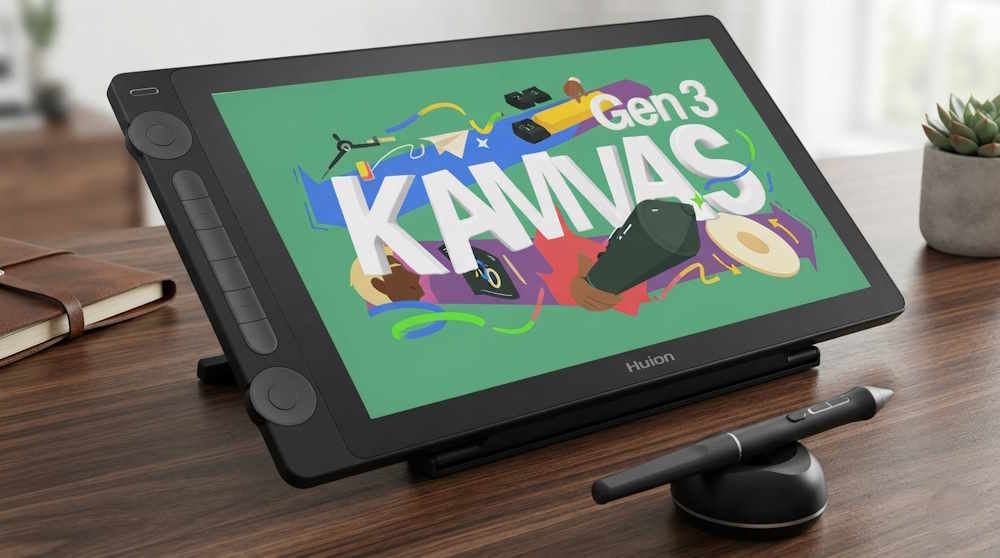
If $1,700 is more than a hobbyist wants to spend, the Kamvas 16 Gen 3 is the obvious next step down. Its 15.8-inch 2.5K QHD panel runs at 186 ppi with 99% sRGB, 90% Adobe RGB, and 99% Rec.709 coverage, and every unit ships with an individual factory calibration report rating accuracy at Delta E under 1.5. Huion’s nano-etched glass gives the surface a matte, paper-like drag that a lot of artists prefer over the glossier feel of pricier displays. The tablet doubles as a screenless pen tablet too, a nice option for saving battery or reducing eye fatigue during long sessions.
Pricing runs from roughly €567 to €809 depending on region and promotions, which puts real color accuracy within reach of anyone stepping up from a screenless pad. The one caveat: earlier Kamvas 16 models topped out at 1080p, so double-check you’re buying the Gen 3 or 2.5K variant and not old stock still floating around retailers.
Pros:
- Individually calibrated at the factory, with a report included
- Matte, nano-etched glass gives a genuinely paper-like drag
- Doubles as a screenless pen tablet to save battery or eye strain
Cons:
- Adobe RGB coverage trails the pricier displays on this list
- Older Kamvas 16 stock at 1080p still circulates; confirm the Gen 3
- Stand sold as a separate accessory
RELATED ARTICLE
Best GPUs for Video Editing & Transcoding – Full Review
We take the best GPU hardware for video editing and transcoding apart for the best options you can get right now…
Wacom Intuos Pro Medium
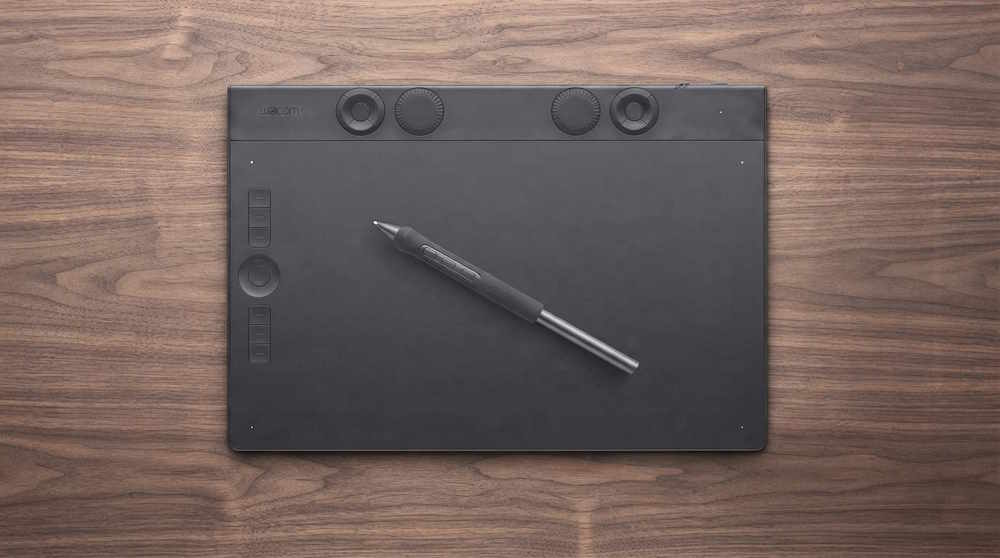
Not everyone wants to draw directly on glass, and for the hand-eye-coordination crowd, the redesigned Intuos Pro Medium remains the pen tablet to beat. The 2025 redesign brought an ultra-slim 16:9 format with an ergonomic ExpressKey layout that works for right- and left-handed users alike, paired with the same 8192-level Pro Pen 3 found in the Cintiq line. It connects over both USB and Bluetooth, and Wacom quotes up to 16 hours of battery life on the wireless connection.
At around $350, it costs a fraction of any screen tablet while offering the same pen accuracy professionals rely on for retouching, 3D sculpting, and line art. The learning curve of looking at a monitor while your hand moves on a separate surface takes new users a week or two to adjust to, but once it clicks, most artists find it faster than a pen display for anything that doesn’t require on-canvas color judgment.
Pros:
- Professional-grade Pro Pen 3 accuracy at a fraction of a display’s cost
- Ambidextrous ExpressKey layout
- Genuinely portable; slips into a bag without a second thought
Cons:
- Hand-eye disconnect takes new users a week or two to adjust to
- No screen means no on-canvas color judgment
- ExpressKeys take some remapping to feel natural
RELATED ARTICLE

Build a VR-Ready PC – Full Guide & Recommendations
Want to go VR? Follow this guide to build a VR-Ready PC with hardware recommendations.
XP-Pen Deco Pro MW
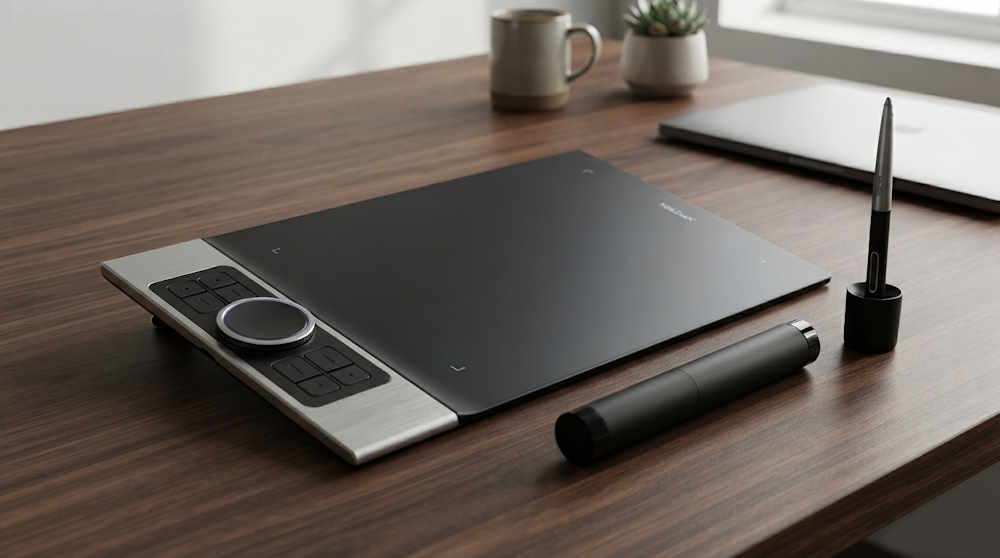
For anyone who wants a capable screenless tablet without spending Wacom money, the Deco Pro MW is the pick. Its 11 x 6-inch active area is generous for the price, the PA1 battery-free stylus supports 8192 pressure levels and 60-degree tilt, and two control wheels plus eight shortcut keys give you real hardware shortcuts instead of relying on keyboard combos. Bluetooth 5.0 handles the wireless connection with a claimed 3 to 5 meters of working range indoors, and the whole unit is built into an ultra-thin, 7mm-class aluminum body.
At around £149, it competes directly with older Wacom Intuos models on paper and, in day-to-day sketching, feels close in hand as well. The pen lacks a built-in eraser button, which 3D sculptors in particular tend to miss, and the bundled software is thinner than XPPen’s newer Artist Pro suite. Neither is a dealbreaker at this price.
Pros:
- Real hardware shortcuts: two control wheels plus eight keys
- Bluetooth 5.0 wireless with a claimed 3-5m indoor range
- Ultra-thin, 7mm-class aluminum body
Cons:
- Pen has no built-in eraser button, a miss for 3D sculptors
- Software suite is thinner than XPPen’s newer Artist Pro tools
- Pen tech is a generation behind Wacom’s Pro Pen 3
RELATED ARTICLE

Best Laptop for Solidworks
We take Workstation Laptops for a spin in this rundown of the best Lappies for Solidworks modeling and rendering
Apple iPad Pro (M5) with Apple Pencil Pro
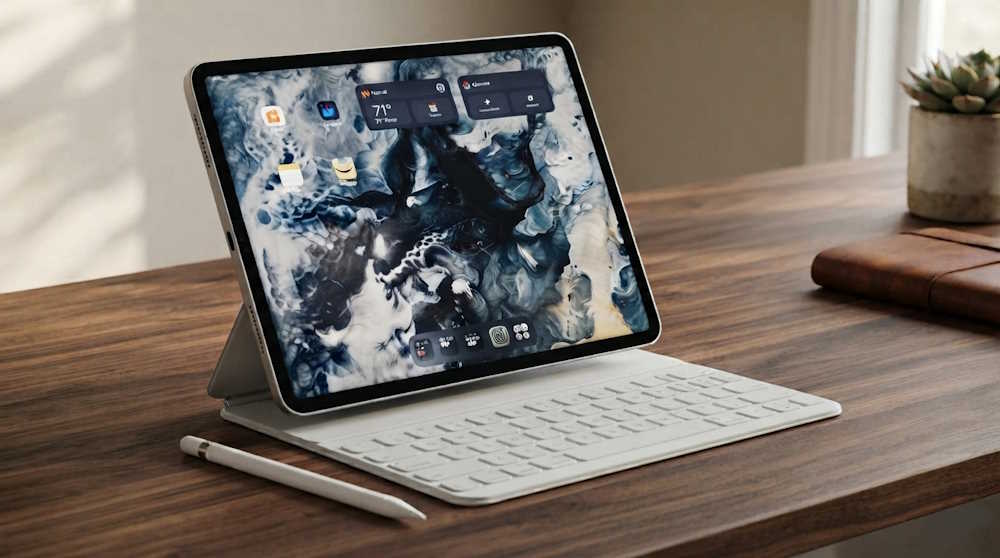
For artists who want to draw on a train, in a coffee shop, or anywhere without hauling a PC, the M5 iPad Pro remains the standalone tablet to own. The tandem OLED Ultra Retina XDR display carries over unchanged from the M4 model, but the new 10-core CPU and 10-core GPU with a Neural Accelerator in every core gives noticeably faster brush rendering and layer handling in Procreate, especially on files with dozens of layers. Paired with the Apple Pencil Pro’s tilt, squeeze, and barrel-roll gestures, it is the most complete out-of-the-box drawing experience on this list, no drivers to install, no calibration to run.
Pricing starts at $999 for the 11-inch model and $1,299 for the 13-inch, before adding the Pencil and a keyboard case. It is also the only device here that is not primarily a drawing tool; it is a full tablet computer that happens to draw exceptionally well. For artists who live inside Procreate and want to work anywhere, that versatility is the entire point.
Pros:
- Zero setup: no drivers, no calibration, works immediately
- Tandem OLED display is best-in-class for a portable device
- Doubles as a full tablet computer, not just a drawing surface
Cons:
- Pencil Pro and a keyboard case add real cost on top of the base price
- Pressure sensitivity, while excellent, isn’t as fine-grained as dedicated EMR pens
- Procreate is the best app for it, but it’s iPad-exclusive
More Like This >
What are the Best Laptops for AutoCAD in 2026?
Best Router for TV Streaming in 2026, Ranked and Tested
The Best 24-inch Monitor for 2026
What is the Best Gaming Laptop under 3000 Dollars in 2026?
What’s the Best Graphics Card for Video Editing and Rendering in 2026
What are the Best GPUs under $100 for 2026?
Concluding thoughts
Pen tablets stopped being a one-brand category years ago, and 2026 is proof of how far the gap has closed. Wacom still sets the ceiling for pen feel and color accuracy, but it no longer sets the floor for what’s usable; Huion and XPPen now deliver most of that experience at a fraction of the cost, and Apple has made a strong case that the best tablet for a lot of artists is one that isn’t a drawing tablet at all.
The right pick here comes down to honesty about your own workflow; hobbyists testing the waters gain nothing from a $5,000 display they’ll use twice a week. Working professionals billing clients for color-accurate output have no business settling for a screenless pad to save a few hundred dollars. Match the tool to the work, not the other way around, and any of the six on this list will outlast its price tag. What are your thoughts on this article? Please drop a comment letting us know. You should check out other reviews or our PC build configurations.