


You are 45 minutes into rendering a 4K timeline, your CPU fan is screaming like it just witnessed a jumpscare, and the progress bar has not moved in the last ten minutes. If that scenario sounds painfully familiar, your system is probably running on integrated graphics – and your creative workflow is quietly dying because of it. Understanding the importance of a dedicated graphics card for video editing, photo editing, and casual use is not an it-doesn’t-really-matter conversation in 2026; it is a necessary one, especially as software demands have outpaced what integrated silicon can reasonably handle.
This guide covers everything from the basic differences between integrated and dedicated GPUs, to specific hardware recommendations for creators, casual gamers, and everyday users who want their machine to stop buffering mid-thought.
What Is a Dedicated Graphics Card and Why Does It Matter in 2026?
Integrated Graphics vs. Dedicated GPU: The Key Differences
Integrated graphics are built directly into the CPU and share the system’s main RAM. They are fine for displaying a desktop, browsing the web, or watching a YouTube video at 1080p. The moment you push them toward anything that requires sustained graphical throughput – rendering, color grading, or even running two monitors with a game in the background – they buckle.
A dedicated GPU, by contrast, is a standalone card with its own VRAM, its own memory bus, and thousands of shader cores designed specifically for parallel processing. Think of integrated graphics as a shared office cubicle where everyone uses the same printer; a dedicated GPU is your own private studio with a dedicated server rack in the corner. The difference in output quality and speed is not marginal – it is structural.
In 2026, mid-range dedicated cards ship with 12GB to 16GB of VRAM as a baseline. That headroom matters enormously when you are working with large RAW photo files, multi-layer video timelines, or running local AI inference tools alongside your creative suite.
How GPU Technology Has Evolved Heading Into 2026
The GPU landscape shifted considerably between 2024 and 2026. NVIDIA’s RTX 50 series brought hardware-accelerated AI features into the mainstream, while AMD’s RX 9000 series closed the gap in rasterization performance and introduced FSR 4 with much more convincing upscaling quality. Intel’s Arc B-series cards also matured significantly, offering solid hardware encoding performance at competitive price points.
Software like Adobe Premiere Pro, DaVinci Resolve 20, and Lightroom Classic now offload a substantial portion of their processing to the GPU rather than the CPU. AI-assisted noise reduction, smart color matching, and real-time effect rendering all depend on GPU compute. Running these apps on integrated graphics in 2026 is the software equivalent of trying to stream 4K video over a 2G connection.
The Real Cost of Running Without a Dedicated GPU
The productivity loss is tangible. A timeline that exports in 8 minutes on a dedicated GPU can take upwards of 45 to 60 minutes on integrated graphics – sometimes longer, depending on the codec and effects stack. For a freelance video editor billing by the project, that difference is money left on the table every single day.
There is also the thermal problem. On laptops and compact systems using APUs, sustained graphical loads cause the CPU to throttle its clock speeds to manage heat. The system essentially punishes itself for working hard. You can read more about what it actually looks like to run a PC without a GPU and whether it makes sense for your use case.
Why Dedicated GPUs are Indispensable for Video Editing
How GPUs Accelerate Video Editing tasks
GPU-accelerated rendering in Premiere Pro and DaVinci Resolve works through APIs like CUDA (NVIDIA), OpenCL (AMD/Intel), and Metal (Apple Silicon). These allow the GPU to handle effects processing, color grading, motion graphics rendering, and timeline playback simultaneously – tasks that would otherwise queue up on the CPU and create a bottleneck.
Hardware-accelerated encoding is another area where the dedicated GPU earns its place. NVIDIA’s NVENC, AMD’s VCE, and Intel’s Quick Sync all allow the card to encode H.264, H.265, and AV1 footage using dedicated silicon rather than burning CPU cycles. In 2026, AV1 hardware encoding has become particularly relevant as more platforms – YouTube, Twitch, and streaming services – prefer it for its compression efficiency.
For a deeper breakdown of how specific GPUs perform in Premiere Pro and DaVinci Resolve, the best CPU and GPU combinations for video editing guide covers the benchmarks in detail.
4K, 6K, and 8K Editing: Why VRAM Is Non-Negotiable
Editing 4K footage in a multi-layer timeline with color grades, LUTs, and motion effects applied can consume 6GB to 10GB of VRAM by itself. Step up to 6K or 8K RAW formats – common in 2026 among Sony FX3, RED, and Blackmagic Cinema Camera users – and 12GB becomes the floor, not a luxury.
When VRAM runs out, the GPU starts offloading data to system RAM, which is dramatically slower. The result is dropped frames during playback, stuttering timelines, and export times that make you wring your hands in frustration. A card with 16GB of VRAM gives you enough headroom to work without constantly babysitting your resource monitor.
The full breakdown of how essential a discrete GPU is for video editing software is worth reading if you are still on the fence about upgrading.
GPU Recommendations for Video Editing, Photo Editing, and Casual Use
Below are current GPU recommendations organized by use case. These are not exhaustive rankings; they are practical picks based on value, VRAM capacity, and real-world performance in 2026. Also see the best GPUs for video editing and transcoding for a more granular comparison.
Best GPU for Video Editing
ASUS ProArt RTX 5070 Ti OC 16GB

ASUS ProArt RTX 5070 Ti OC 16GB
The ASUS ProArt GeForce RTX 5070 Ti OC Edition 16GB is an excellent choice for video editing, combining 8,960 CUDA cores with 16GB of fast GDDR7 memory. Its NVIDIA Studio driver support helps optimize professional creative applications, while the substantial VRAM is well suited to demanding 4K and high-resolution projects.
The RTX 5070 Ti sits in the sweet spot for serious video editors in 2026. Its 16GB of GDDR7 VRAM handles 6K and 8K RAW timelines without complaint, NVENC on the Blackwell architecture is the best hardware encoder NVIDIA has shipped, and DLSS 4 with Multi Frame Generation is genuinely useful for real-time preview rendering in supported applications. The ASUS ProArt variant is tuned specifically for creator workloads, with a quieter fan profile and factory overclock that keeps it stable under sustained loads.
Weakness: The price sits north of $700, which is a meaningful investment. But for a working editor billing clients regularly, the time saved on exports justifies it within weeks.
Sapphire Nitro+ RX 9070 XT 16GB
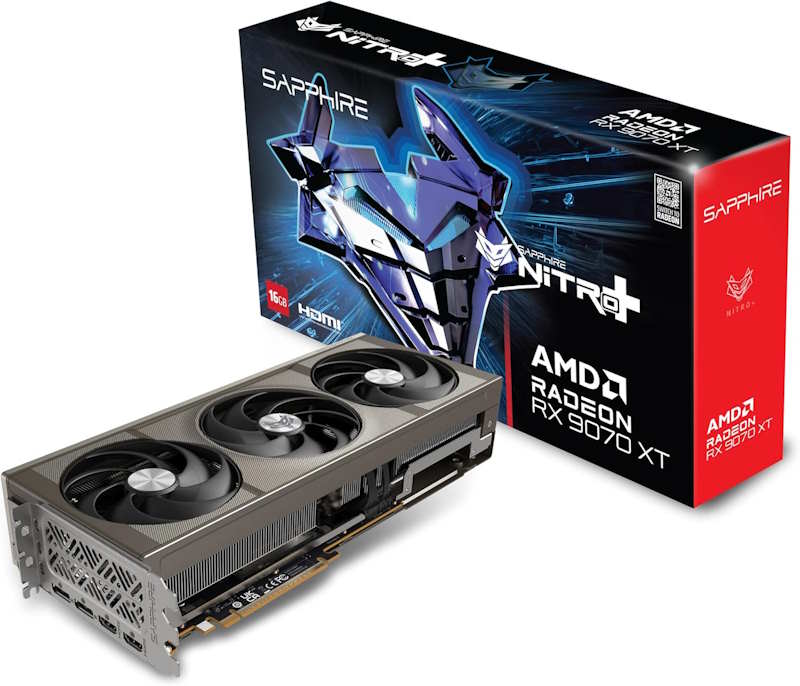
Sapphire Nitro+ RX 9070 XT 16GB
The Sapphire Nitro+ RX 9070 XT 16GB is an appealing choice for video editors who want strong performance without paying a premium for a flagship GPU. Its excellent price-to-performance balance, generous memory, and robust cooling make it well suited to demanding editing workloads, while Sapphire’s premium Nitro+ build quality adds confidence for long-term use.
AMD’s RX 9070 XT is the strongest value argument in the high-mid-range category right now. Sapphire’s Nitro+ cooler keeps thermals well under control during long rendering sessions, and the 16GB GDDR6 frame buffer is identical to the RTX 5070 Ti in capacity. Where it lags slightly is in AI-accelerated workloads – NVIDIA’s tensor cores still have an edge in applications that leverage them directly. For pure rasterization and hardware-accelerated export in DaVinci Resolve, the gap is negligible.
Weakness: AMD’s driver maturity for professional creative applications still trails NVIDIA in some edge cases, though it has improved considerably in 2026.
Best GPU for Photo Editing
MSI Gaming X RTX 5060 Ti 16GB
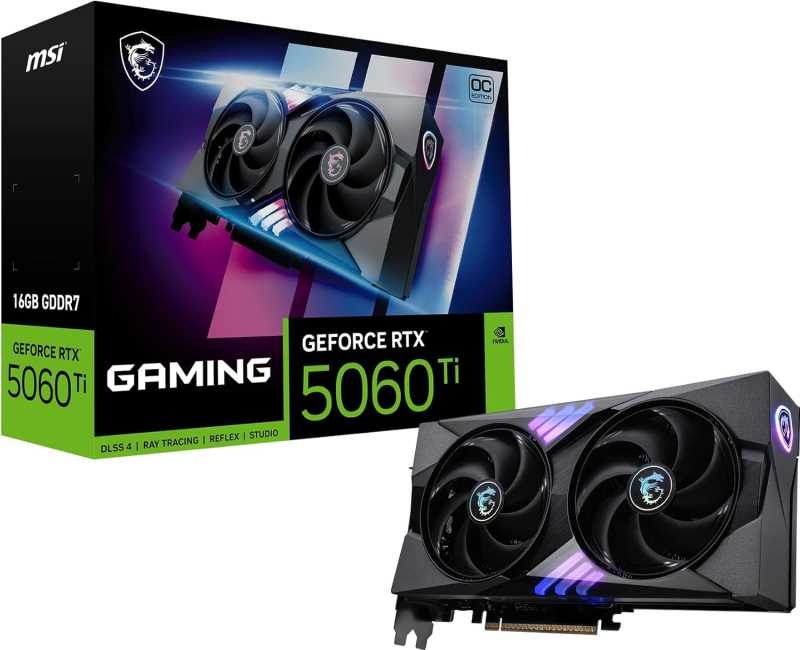
MSI Gaming RTX 5060 Ti OC
The MSI Gaming RTX 5060 Ti 16GB is a strong value option for video editors who want capable performance without stepping into the higher price brackets. Its 16GB memory gives it useful headroom for demanding projects, while MSI’s Gaming series adds dependable cooling and build quality. It is a sensible choice for creators working with 4K footage on a reasonable budget.
Photo editing in Lightroom, Capture One, or Photoshop does not demand the same sustained GPU compute as video editing, but VRAM still matters when you are working with large panoramic stitches, high-resolution composites, or AI-powered masking tools. The RTX 5060 Ti with 16GB covers all of that at a considerably lower price than the 5070 Ti. The MSI Gaming X variant runs quietly and cool, which matters for desktop systems that sit next to a microphone during recording sessions.
Weakness: The memory bandwidth is lower than the 5070 Ti, which becomes noticeable when working with extremely large files (200MP+ medium format RAW). For most photographers, this is not a real-world limitation.
PowerColor Hellhound RX 9060 XT 16GB
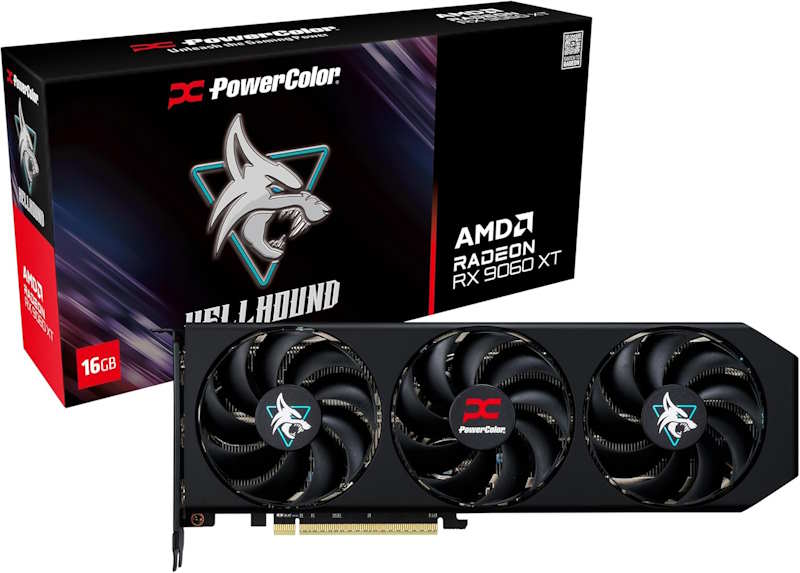
PowerColor Hellhound RX 9060 XT 16GB
The PowerColor Hellhound RX 9060 XT 16GB is a compelling budget-friendly option for video editors who want plenty of memory without paying for a higher-end GPU. It offers a strong balance of performance and value for everyday editing and 4K workloads, while the Hellhound design brings solid cooling and build quality. It is particularly attractive for cost-conscious creators.
PowerColor’s Hellhound cooler has become a reliable mid-range option, and the RX 9060 XT with 16GB of VRAM is a compelling pick for photographers who also want to run some casual gaming on the side. It handles Lightroom’s AI Denoise feature, Photoshop’s Generative Fill, and even some light video editing without breaking a sweat. The price-to-VRAM ratio is one of the best in this tier.
Weakness: Ray tracing performance is behind NVIDIA equivalents, though that is rarely relevant for photo editing workflows.
Best GPU for Casual Gaming
Gigabyte Gaming OC RTX 5060 8GB
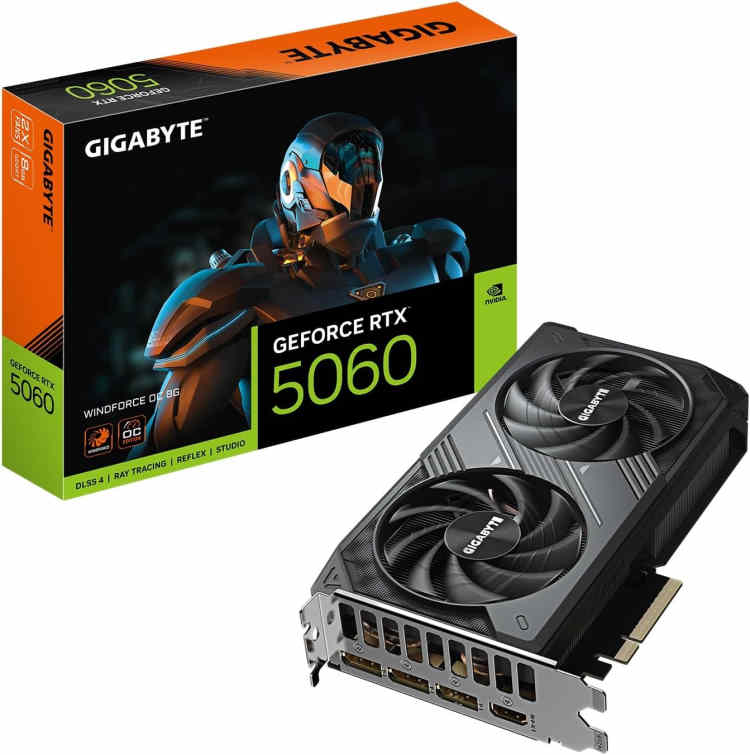
Gigabyte GeForce RTX 5060 Windforce OC
The Gigabyte Gaming OC RTX 5060 8GB is a sensible budget choice for video editors, especially at a little over 400 bucks. It delivers strong everyday editing performance and benefits from NVIDIA’s excellent support across popular creative applications. The main attraction is its balance of capable performance, reliable cooling, and reasonable cost, making it well suited to 1080p and lighter 4K editing workloads.
For casual gaming at 1080p or 1440p – think titles like Baldur’s Gate 3, Stardew Valley, Call of Duty, or the occasional AAA release – the RTX 5060 is more than adequate. The Gigabyte Gaming OC version has a solid triple-fan cooler and runs well within thermal limits even in a mid-tower with average airflow. DLSS 4 support means you can push frame rates higher in supported titles without a proportional GPU load increase.
Weakness: 8GB of VRAM is starting to show its ceiling in some modern AAA titles at higher texture settings. It is not a dealbreaker for casual play, but worth noting if your library skews toward demanding open-world games.
Intel Arc B580 12GB
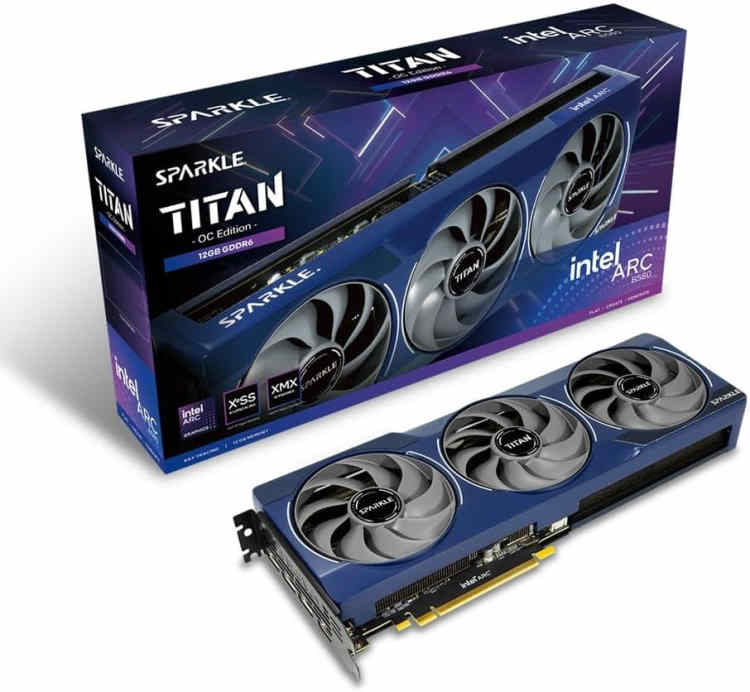
Intel Arc B580 Titan OC
The Intel Arc B580 12GB is one of the more attractive value options for video editors at a modest sub $400 price tag. It offers plenty of memory for the money and delivers capable performance for modern editing workloads. Its competitive price makes it particularly appealing to creators building a capable editing PC on a tighter budget, without sacrificing useful headroom for demanding projects.
Intel’s Arc B580 remains one of the most interesting value propositions in casual gaming in 2026. Twelve gigabytes of VRAM at its price point is genuinely unusual, and XeSS 2 upscaling has matured enough to be useful in real gameplay scenarios. It handles 1080p and 1440p gaming in most titles without issue, and its hardware AV1 encoding is arguably the best in its price bracket – useful if you stream occasionally on Twitch or YouTube.
Weakness: Driver support, while much improved, still has occasional hiccups in older DX11 titles. If your library is heavy on legacy games, keep that in mind.
Best GPU for Basic / Everyday Use
ZOTAC Gaming RTX 5050 8GB

Zotac Gaming GeForce RTX 5050 Twin Edge OC
The ZOTAC Gaming GeForce RTX 5050 Twin Edge OC 8GB is a practical entry-level choice for video editors, particularly at about $343 on Amazon. It offers a relatively affordable path into NVIDIA’s ecosystem, with good support for popular creative applications and a compact, well-built design. It is best suited to 1080p editing and lighter 4K projects where keeping costs down is a priority.
For users who primarily browse, stream media, handle office work, and occasionally run a light game or two, the RTX 5050 is a capable and power-efficient option. It does not need an aggressive PSU, runs cool with a single fan, and handles 4K display output without any issues. It is the kind of card that does its job quietly and without drama – which is exactly what basic-use machines need.
Weakness: Not suited for any serious creative workload or high-fidelity gaming. It is a utility card, full stop.
Intel Arc B570 10GB
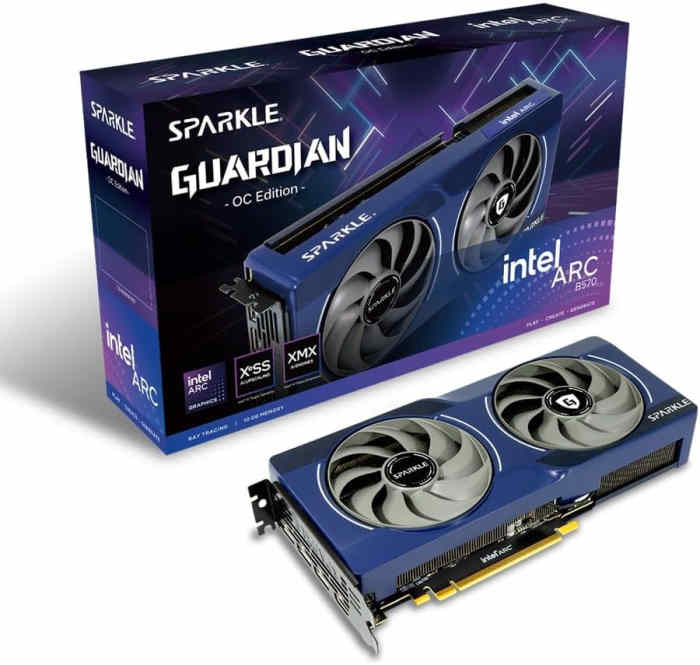
Sparkle Intel Arc B570 Guardian OC
The Sparkle Intel Arc B570 10GB offers a solid balance of affordability and capability for editors at about $369. It provides enough memory for a range of editing tasks while delivering respectable performance for everyday and moderately demanding projects. For creators on a budget, it is an appealing alternative to similarly priced cards, particularly when value matters more than outright performance.
The Arc B570 slots in just below the B580 and offers a compelling amount of VRAM for its price. For users who want a step up from integrated graphics without spending much, it handles 1080p media playback, light photo work, and casual browser-based tasks with ease. The hardware video decode support is broad – AV1, HEVC, VP9 – which makes it particularly useful for media consumption and light content creation. You can also check the best GPUs under $100 if budget is the primary constraint.
Weakness: Not a gaming card in any meaningful sense. Treat it as a productivity and media GPU and it will serve well.
AMD PC Build for Video Editing and Content Creation
These components are hand-picked and vetted for compatibility, though we do not guarantee availability. They are suitable for an AMD-based PC build optimized for video editing, photo editing, and content creation workloads. If you do not like the recommendations, you can easily swap out unwanted parts and add new ones using the AI PC Builder tool. Simply click on the BUILD/CUSTOMIZE THIS button to get started.
- CPU: Ryzen 7 9800X3D$444.00
Price on Newegg
Amazon Price
- Motherboard: MSI MAG X870E Tomahawk WiFi AM5$289.99
- GPU: Sapphire Nitro+ RX 9070 XT 16GB$917.99
- RAM: Teamgroup T-Force Delta RGB 32GB$599.99
- Storage 1: Inland Performance Plus 2TB NVMe Gen5 NVMe$329.99
- PSU: Thermaltake Toughpower GF3 850W 80+ Gold$123.99
- Case: Fractal Design Pop XL (Unavailable)$109.99
- CPU Cooler: Thermalright Phantom Spirit 120SE$35.90
TOTAL COST: $2,851.84
📊 Price History
[Prices updated: 3:23pm, 10/03/2026]
Intel PC Build for Video Editing and Content Creation
These components are hand-picked and vetted for compatibility, though we do not guarantee availability. They are suitable for an Intel-based PC build optimized for video editing, photo editing, and content creation workloads. If you do not like the recommendations, you can easily swap out unwanted parts and add new ones using the AI PC Builder tool. Simply click on the BUILD/CUSTOMIZE THIS button to get started.

- CPU: Core Ultra 7 265K$344.99
- Motherboard: ASUS ROG Strix Z890-F Gaming WiFi$335.00
- GPU: ASUS ProArt RTX 5070 Ti OC 16GB (Unavailable)$1,419.00
Price on B&H |
Price on Manufacturer
- RAM: Klevv Cras V RGB DDR5 32GB$554.99
- Storage 1: Sabrent Rocket 5 2TB Advanced Performance Internal NVMe$349.99
- PSU: Lian Li SP850 V2 Gold 850 Watt SFX 80+ Gold Efficiency$144.00
- Case: Lian Li Lancool 216 Mid-Tower Case RGB$99.99
- CPU Cooler: be quiet! Dark Rock Pro 5$84.81
TOTAL COST: $3,332.77
📊 Price History
[Prices updated: 3:23pm, 10/03/2026]
Putting It Together
Assembling either of these builds follows the same general sequence: install the CPU and cooler first, seat the RAM, mount the motherboard in the case, install the GPU and storage, then route power cables from the PSU. It sounds straightforward on paper, and it largely is – provided you take your time and do not force any connectors.
If you have never built a PC before or want a detailed walkthrough of the process, the step-by-step DIY PC build guide covers the entire process from unboxing to first boot, with enough detail to get a first-timer through it without incident.
One thing worth mentioning for content creators specifically: thermal paste application on the CPU matters more than most guides acknowledge. A poor application on a high-TDP processor like the Ryzen 9800X3D or Core Ultra 7 265K can result in temperatures 5 to 8 degrees Celsius higher than optimal, which affects sustained performance during long renders. Use a pea-sized dot in the center and let the cooler spread it under pressure.
For users curious about local AI workloads alongside creative tasks, the local AI PC build with the Radeon AI Pro R9700 is worth examining as an alternative direction for creator-focused systems.
Optimizing Your Build for Creative Workloads
Hardware alone does not determine workflow speed. Several software-side adjustments make a meaningful difference once the system is running.
In DaVinci Resolve, navigate to Preferences and ensure GPU processing mode is set to CUDA (for NVIDIA builds) or OpenCL (for AMD builds). Resolve defaults to automatic detection, but manual selection can yield faster render times in some configurations. Also enable hardware-accelerated video encoding under the Encode settings when exporting, particularly for H.265 and AV1 output.
In Adobe Premiere Pro, the Mercury Playback Engine GPU Accelerated renderer should be active by default, but verify it under File > Project Settings > General. If it shows Software Only, your GPU driver may need updating or the application may not have detected the card correctly after installation.
For Lightroom users, enabling GPU acceleration under Performance settings reduces the lag on AI-powered tools like Denoise and Masking significantly. On systems with 16GB of VRAM, Lightroom can cache considerably more image data on the GPU, which makes flipping through a large catalog noticeably faster.
RAM speed also plays a supporting role in creative workloads. Both the AMD and Intel builds above use DDR5 at 6000MHz or above, which feeds the GPU and CPU with enough bandwidth to prevent memory-side bottlenecks during sustained rendering. If you are upgrading an existing system rather than building fresh, enabling XMP or EXPO in the BIOS is the single easiest performance gain most users leave on the table.
Conclusion
Integrated graphics were never designed for the workloads that content creators, photographers, and even casual gamers routinely run in 2026. The software has outgrown the hardware assumptions of five years ago, and the gap between what integrated silicon can deliver and what a mid-range dedicated card provides is wide enough to measure in hours per week for anyone doing serious work.
The GPU recommendations and builds above cover the full spectrum from basic everyday use to professional-grade video editing. Whether you are color grading a short film, culling a 500-image wedding shoot in Lightroom, or just trying to run a game without the fans sounding like a turbine, a dedicated card is the correct answer. The only real question is which one fits your budget and workload – and the options in 2026 make that an easier decision than it has ever been.
For users considering the upper end of GPU spending for AI and creative tasks simultaneously, the RTX 5090 PC build cost breakdown gives a clear picture of what that investment actually looks like in practice.
All Articles